What Is a Passkey? How It Differs from Passwords and 2FA
Passkeys let you sign in by unlocking your phone, with no password to remember. Here is how they work, why they are harder to phish, and what to do when you switch phones.
Key Takeaways
- A passkey is a sign-in credential based on FIDO standards that replaces passwords; you sign in by unlocking your device with a fingerprint, face or screen lock.
- Passkeys use public-key cryptography, so websites store only a public key; Apple says the server never learns what the private key is.
- The FIDO Alliance estimated in October 2026 that about 7 billion passkeys are in use worldwide.
- Google says passkeys cannot be shared, copied or written down, and the biometric data used to unlock your device stays on the device.
- Passkeys for a Google Account need a phone running Android 9 or iOS 16 or later, or a computer running Windows 10 or macOS Ventura or later.
Every website wants a long, unique password, plus a text message or authenticator app on top, and signing in keeps getting more tedious. Passkeys are meant to fix exactly that: no password to type, just unlock your phone to sign in.
This guide explains what a passkey is and how it works, compares it with passwords and 2FA in a table, and covers which devices support it, how to create one, and what happens when you change or lose your phone.
What Is a Passkey?
A passkey is a sign-in credential based on FIDO standards that replaces your password. It is stored on your phone, computer or a security key, and you sign in by unlocking the device with a fingerprint, face or screen lock.
According to the FIDO Alliance, which develops the standards, passkeys replace passwords with a pair of cryptographic keys. Each passkey is tied to your account on a particular website or app, and passkeys are designed so that there are no shared secrets between you and the site, which is what makes them resistant to phishing.
Chinese-language names vary: Apple's Traditional Chinese interface calls them "通行密鑰," while Google's Traditional Chinese help pages say "密碼金鑰." In English they are all passkeys, and they refer to the same thing.
How Do Passkeys Work?
Your device creates a key pair: the public key goes to the website, while the private key stays on your device or in your sync service. To sign in, the device proves your identity with the private key and the site checks it with the public key.
Apple explains that passkeys are built on the WebAuthn (Web Authentication) standard, which uses public-key cryptography. The public key stored on the server does not need to be kept secret; signing in requires the other, private key, and the server never learns what that private key is. Because no shared secret is sent when you sign in, passkeys are very hard to phish.
The fingerprint or face you use to unlock your device is not sent anywhere either. Google says the biometric data used for fingerprint or face unlock stays on your device and is never shared with Google. All the website sees is that "this device completed the check with the correct private key."
How Are Passkeys Different from Passwords and 2FA?
Passwords can be seen or stolen. 2FA adds a second check, but the codes can still be phished. A passkey has no secret you can type or hand over, so it is much harder to phish.
| Comparison | Password only | Password + code (2FA) | Passkey |
|---|---|---|---|
| What you do to sign in | Type a password | Type a password, then a code from a text message or app | Unlock your device with a fingerprint, face or screen lock |
| What you have to remember | A password, ideally different for every site | A password, plus you need your phone | Nothing; just carry the device that has the passkey |
| What the website stores | Password-related data | Password-related data and verification settings | A public key; the private key is not on the site |
| Can a fake site steal it? | A password typed into a fake site is exposed | Both the password and the code can be reused by the scammer | There is no secret to type, so it is very hard to steal |
For example, imagine you receive a fake account alert and click through to a sign-in page that looks exactly like the real one. With a password and code, whatever you type on the fake page goes straight to the scammer, who can immediately use it on the real site. A passkey is tied to your account on the real site and has no string of characters you could copy out, so the fake site gets nothing it can reuse.
Authenticator app codes are calculated from a secret key and the current time; you can see how that works in our 2FA code generator. A passkey, by contrast, never produces a number for you to type. For the types of 2FA and how to set them up, see what 2FA two-step verification is.
Passkey use is also growing. Figures the FIDO Alliance published on October 15, 2026 estimate that about 7 billion passkeys are in use worldwide. Its 2026 Passkey Index, released the same day with data from 15 major consumer services around the world, found that more than a third of successful sign-ins at those services now use a passkey, and that passkey sign-ins are nearly three times faster than passwords and traditional MFA.
Which Devices Can Use Passkeys?
Most phones and computers with a reasonably recent operating system can, as long as your browser is also up to date. For a Google Account, the official requirements are listed below.
- Phones: Android 9 or later, or iOS 16 or later.
- Computers: Windows 10, macOS Ventura or ChromeOS 109 or later.
- Browsers: Chrome 109, Safari 16, Edge 109 or Firefox 122 or later.
- Hardware security keys: Keys that support the FIDO2 protocol.
To create a passkey for a Google Account:
- Sign in to your Google Account on your own phone or computer and go to the passkeys page (myaccount.google.com/signinoptions/passkeys).
- Select "Create a passkey" and follow the prompts to unlock your device with your fingerprint, face or screen lock.
- To use passkeys on several devices, repeat the same steps on each device.
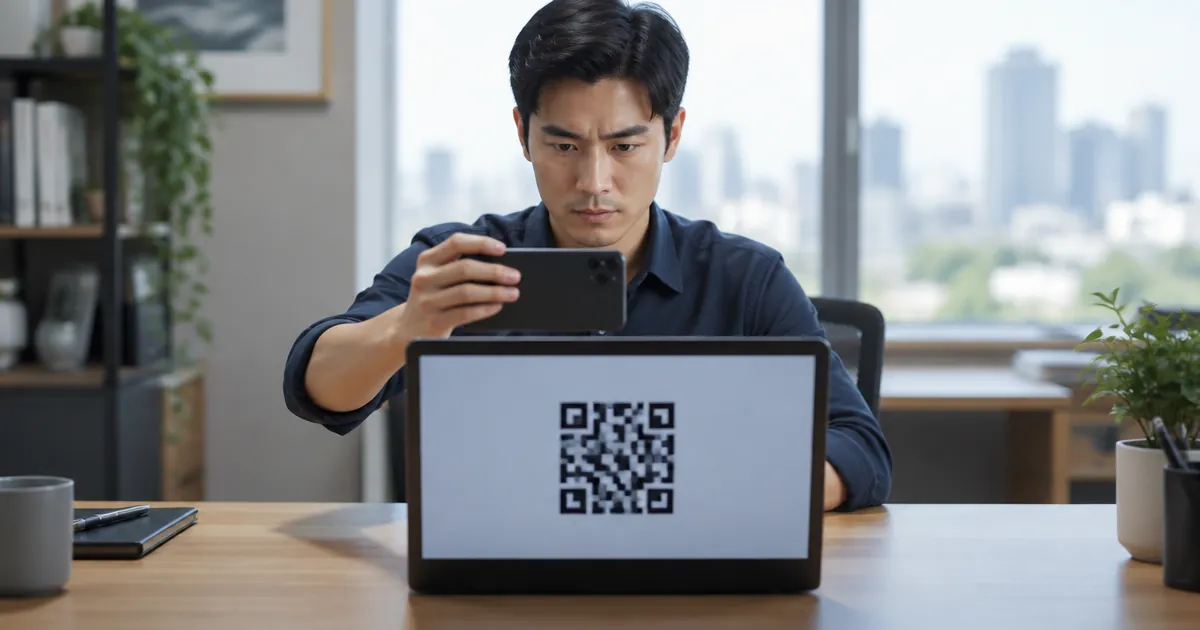
Google warns against creating a passkey on a shared device, so that other people cannot use it to get into your account. If you need to sign in on someone else's computer, have the computer show a QR code, scan it with your own phone with Bluetooth turned on, and verify yourself on the phone; the passkey stays on your phone.
Will You Lose Your Passkeys If You Change or Lose Your Phone?
Passkeys stored in a sync service appear when you sign in to the same account on a new phone. If your phone is lost, sign in from another device and remove the passkey on the lost device.
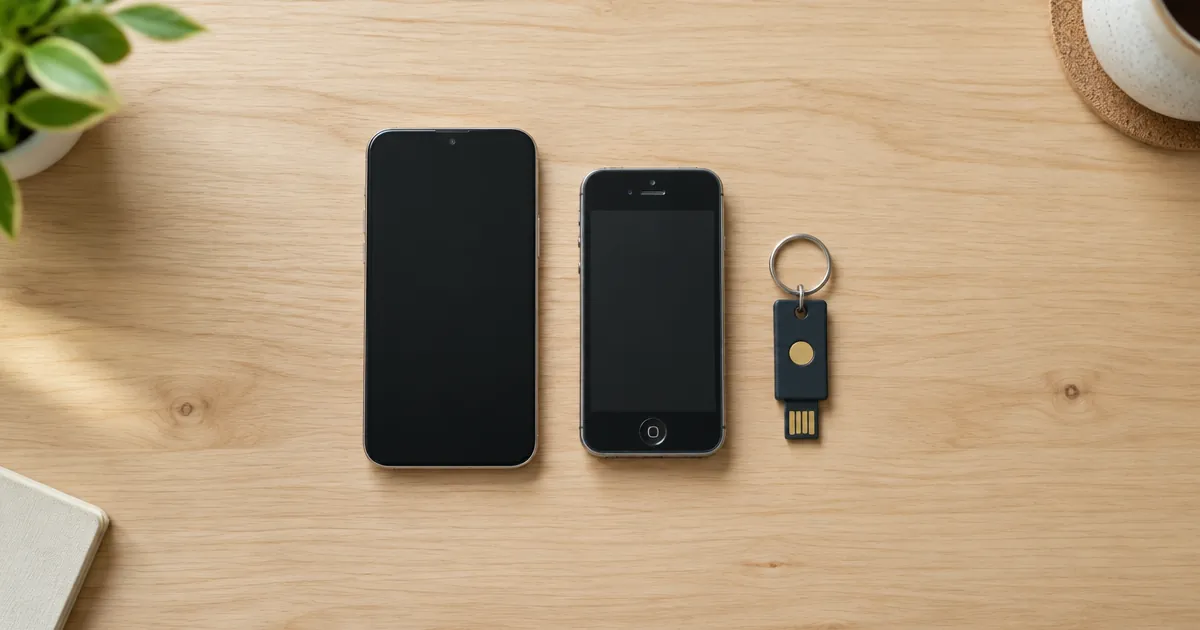
The FIDO Alliance describes two kinds of passkeys. Synced passkeys are kept in a cloud service, and a new device set up with the same passkey provider can get them. Device-bound passkeys never leave a single device; passkeys stored on a FIDO security key are an example. Apple says passkeys on an iPhone sync across your Apple devices through iCloud Keychain, which is end-to-end encrypted with keys Apple does not know.
If you switch to a phone on a different platform (from Android to iPhone, for example), the FIDO Alliance says a cross-platform password manager will make your passkeys available once you set it up on the new phone. If you don't use one, keep the old phone for now: use its passkey to sign in to your account on the new phone, then create a new passkey on the new phone. To move the 2FA data in your authenticator app, see how to move 2FA to a new phone.
The FIDO Alliance also notes that a hardware security key can serve as a recovery credential if you lose access to all your synced devices. If you have no device with a passkey at all, the website may fall back to its normal account recovery process. So keep backup codes and recovery email settings in place.
What Should You Keep in Mind When Using Passkeys?
- Not every site supports them: For services that do not yet, keep using a unique password plus 2FA.
- Keep your phone's unlock code private: Passkeys are protected by your device's screen lock, so anyone who knows your phone's PIN could also use them.
- Create them only on your own devices: Work computers and tablets shared with family are not good places for them.
- Google Accounts skip the second step: Google says that for accounts with 2-Step Verification, signing in with a passkey bypasses the second authentication step.
Frequently Asked Questions
Does a passkey send my fingerprint to the website?
No. Google says the biometric data used for fingerprint or face unlock stays on your device and is never shared with Google. The website only receives the result of a check your device completed with the private key; it never sees your fingerprint.
Should I keep my password once I have a passkey?
For now, yes. Passkeys do not yet work on every device and website, and keeping a password plus 2FA or backup codes lets you sign in when a passkey is not available. Make that password long and do not reuse it elsewhere.
Can I use my passkey to sign in on a friend's computer?
Yes. Google says the computer shows a QR code; scan it with the phone that holds your passkey, turn on Bluetooth and verify on the phone to sign in. The passkey stays on your phone, so do not create a new one on someone else's computer.
Is a passkey the same as a hardware security key?
Not exactly. A passkey can be stored on a phone or computer, or on a hardware security key that supports FIDO. The FIDO Alliance calls passkeys that live on a security key and never leave it device-bound passkeys.
Sources: FIDO Alliance: Passkeys, FIDO Alliance: 7 Billion Passkeys and Counting (2026), Apple Support: About the security of passkeys, Google Account Help: Sign in with a passkey instead of a password