Changing Phones? How to Move 2FA and Back Up Your Authenticator App
Reset your old phone too soon and your verification codes may vanish with it. Here is a pre-switch checklist, transfer steps for Google and Microsoft authenticators, and how to recover with backup codes.
Key Takeaways
- When you change phones, the 2FA data in your authenticator app may not move automatically, so do not reset the old phone until every account works on the new one.
- Google Authenticator syncs your codes once you sign in to a Google Account, and its "Transfer codes" feature can also move them to a new phone with a QR code.
- Microsoft says Microsoft Authenticator accounts backed up on an iPhone cannot be restored on an Android phone.
- Google provides 10 backup codes of 8 digits at a time; each code works only once, and generating a new set makes the old set stop working.
- If you lose your phone, sign in with a backup code or another method first, then remove the lost device, check your sign-in history and change your password.
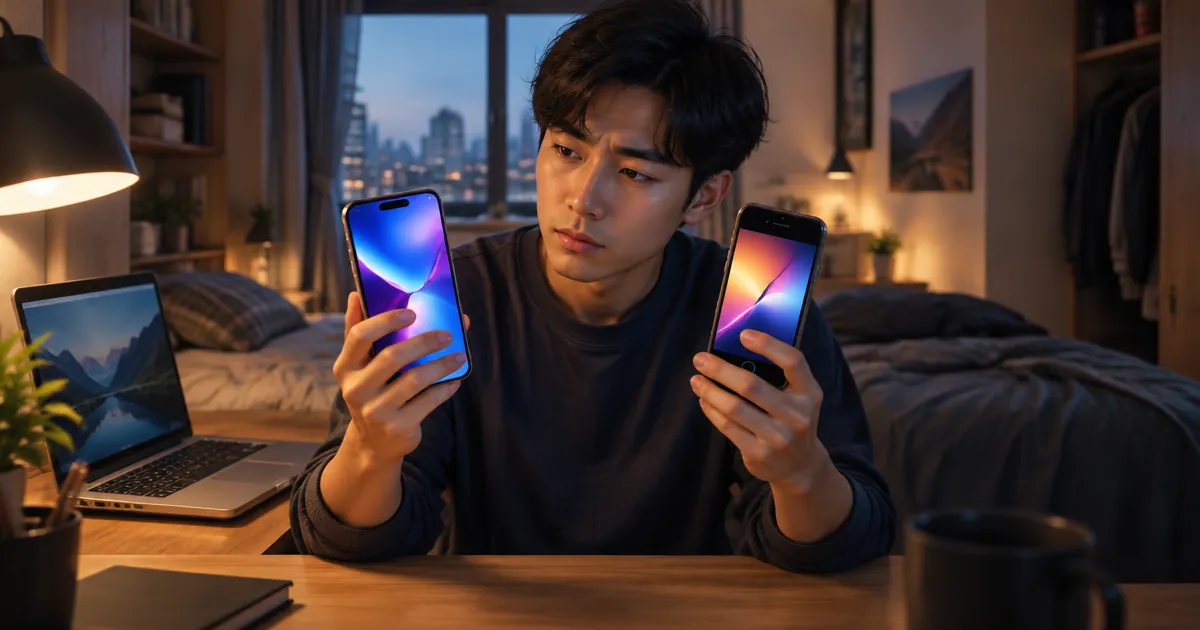
When people get a new phone, they remember to back up photos and chats, but the 2FA authenticator app is easy to forget. Once the old phone is reset, the verification codes disappear with it, and you can end up locked out of your own accounts.
If you are new to 2FA, start with what 2FA two-step verification is. This guide covers what to do before switching, how to move two popular authenticator apps, how to re-link accounts without a backup, and how to recover if your phone is lost.
What Should You Do Before Changing Phones?
Check which 2FA method each account uses, find your backup codes and update your authenticator app to the latest version. Above all, do not reset the old phone until everything has been tested on the new one.
- List your accounts: Open your authenticator app and note which accounts are in it. Also think about which accounts send codes by text message.
- Find your backup codes: Make sure you still have unused backup codes for important accounts. If you cannot find them, generate a new set while the old phone can still sign in.
- Update the app: Google says that for a manual QR code transfer, Google Authenticator on the old phone must be the latest version.
- Keep the old phone: Reset or recycle it only after the transfer is done and you have signed in to each account with the new phone.
How Do You Move Google Authenticator to a New Phone?
There are two ways. If the app is signed in to a Google Account, your codes sync automatically. If not, use "Transfer codes" on the old phone to create a QR code and scan it with the new phone.
Method 1: Sign in to a Google Account to sync
Google says that when you sign in to a Google Account in Google Authenticator, your codes sync across devices and are encrypted in transit and at rest. Sign in to the same account in the app on your new phone and the codes appear automatically. Note that deleting a code on any device also removes it from every synced device.
If you never signed in to a Google Account, the codes exist only on that phone and no other device can get them, so you need Method 2.
Method 2: Transfer manually with a QR code
- Install Google Authenticator on the new phone, open it, tap "Get started" and sign in to your Google Account.
- On the old phone, open Authenticator, go to the menu and choose "Transfer codes" → "Export codes." Unlock the phone, select the accounts to move and tap "Next."
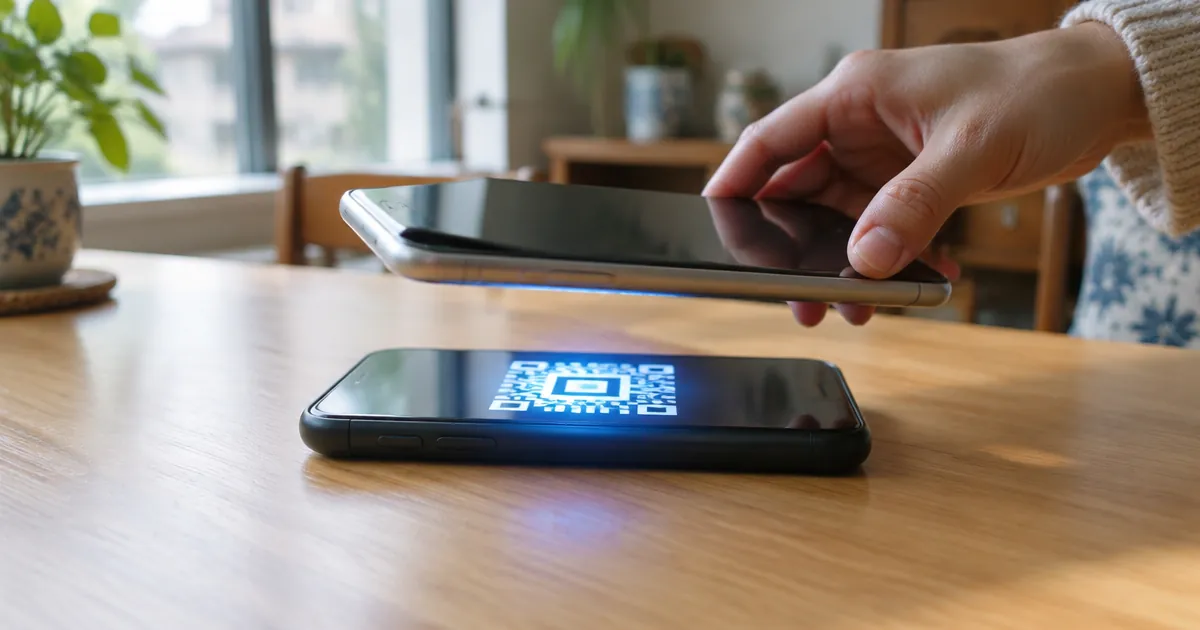
- The old phone shows a QR code. If you transfer more than one account, it may create more than one QR code.
- On the new phone, tap "Scan a QR code," or go to the menu and choose "Transfer codes" → "Import codes," then scan the QR code on the old phone.
- When you see the confirmation that the transfer worked, sign in to your important accounts one by one using codes from the new phone.
How Do You Back Up and Restore Microsoft Authenticator?
Turn on cloud backup on the old phone first, then sign in with the same account on the new phone to restore it. However, a backup made on an iPhone cannot be restored on an Android phone.
- Android: In the app's settings, turn on "Cloud backup" and choose the Microsoft personal account that will store the backup. Sign in to the same account on the new phone to restore your codes. Microsoft's help page notes that starting in January 2027, backup will no longer be enabled with a Microsoft personal account; instead you will enable Microsoft Authenticator from Google One backup.
- iPhone: Turn on iCloud Drive, iCloud Keychain and iCloud Backup, and switch on Authenticator in the "Saved to iCloud" list.
- What gets backed up: One-time codes for Microsoft personal accounts and third-party accounts (social networks, for example) are backed up. Work or school account credentials are not, so you will need to sign in and register those again after switching.
- Switching platforms: Microsoft says accounts backed up on an iOS device cannot be restored on an Android device. If you move from iPhone to Android, you will have to add your accounts again by hand on the new phone.
Using Another App or No Backup? How Do You Re-link Accounts?
As long as the old phone still works, you can re-link accounts one at a time: reset the authenticator in each site's security settings, scan the new QR code with your new phone, and delete the account from the old phone once it works.
- Sign in to the website with a code from the old phone and open its "Security" or "2-Step Verification" settings.
- Choose to change or add an authenticator app. The page will show a new QR code and a secret key.
- Scan the QR code with the authenticator app on the new phone, then enter the code it shows to finish linking.
- Sign out and back in to confirm it works, then delete that account from the old phone.
The secret key you see when re-linking is what the codes are calculated from. If you have saved a key, you can use our 2FA code generator to check that it produces the same codes as your app. But the key is the key to your second lock, so only do this on your own device and never send it to anyone.
Other authenticator apps may have their own export or cloud backup features. Each works differently, so follow that app's official instructions.
What If Your Phone Is Lost or Broken?
Sign in first with a backup code, another device or a security key, then remove the lost phone and link a new one. If you have no backup method at all, you will have to use the service's account recovery process.
Backup codes are one-time codes a service gives you when you turn on 2FA. Google, for example, generates 10 backup codes of 8 digits at a time, and each can be used only once; when you generate a new set, the old set stops working automatically. To use one, choose a different verification method when signing in and enter the backup code.
If the lost phone had Google Authenticator on it, Google recommends acting right away and erasing the phone remotely. If you cannot erase it remotely and your codes were synced to a Google Account, removing that device from your Google Account also removes the codes. If they were not synced, you need to visit every site where you set up codes, remove the old codes and link your new phone again.
After signing in, also follow the advice of Taiwan's Administration for Cyber Security (ACS) under the Ministry of Digital Affairs: check your sign-in history, and if you see an unfamiliar sign-in, sign out of all devices right away and change your password.
Getting Codes by SMS? What to Watch for When Switching Phones?
SMS codes are tied to your phone number, not your handset. If you keep your number, move the SIM or eSIM to the new phone and the codes keep coming. If you change numbers, update the number in each service before ending the old one.
SMS is one of the weaker forms of 2FA. For services that support an authenticator app or passkeys, switching phones is a good time to move to a stronger option; see what a passkey is for the differences.
How Can You Make the Next Switch Easier?
- Keep backup codes offline: Print them and keep them with your important documents, not only on the same phone.
- Use at least two methods: Google also recommends setting up other 2-Step Verification methods so you don't get locked out.
- Turn on sync or cloud backup: And make sure the account that stores the backup has 2FA turned on as well.
- Use automatic time: Google says Authenticator dropped its time correction setting in version 7.0 and now uses your phone's system time, so a wrong clock produces wrong codes.
Frequently Asked Questions
What do I do when I run out of backup codes?
Generate a new set while you can still sign in. With Google, for example, you can create a new set of 10 codes at any time in the "Backup codes" section of 2-Step Verification. The old set stops working, so print the new codes and store them safely.
Do I have to sign in to a Google Account to use Google Authenticator?
No, it works without signing in. But Google says that without signing in, your codes are stored only on the current device and cannot be retrieved from another one, so changing or losing your phone means relying on a QR code transfer or backup codes.
Why do the codes on my new phone keep failing?
First make sure your phone sets its date and time automatically, because the codes are based on time. Then check that you scanned the right account. If it still fails, sign in with the old phone or a backup code and link the account again.
When is it safe to reset my old phone?
Only after you have signed in to every account with codes from the new phone and confirmed your backup codes are stored safely. If even one account has not been moved, wiping the old phone could lock you out of it.
Sources: Google Account Help: Get verification codes with Google Authenticator, Google Account Help: Sign in with backup codes, Microsoft Support: Back up one-time password codes in Microsoft Authenticator, Administration for Cyber Security, Ministry of Digital Affairs (Taiwan): Strengthening account and password security (2026, in Chinese)